Import from Excel
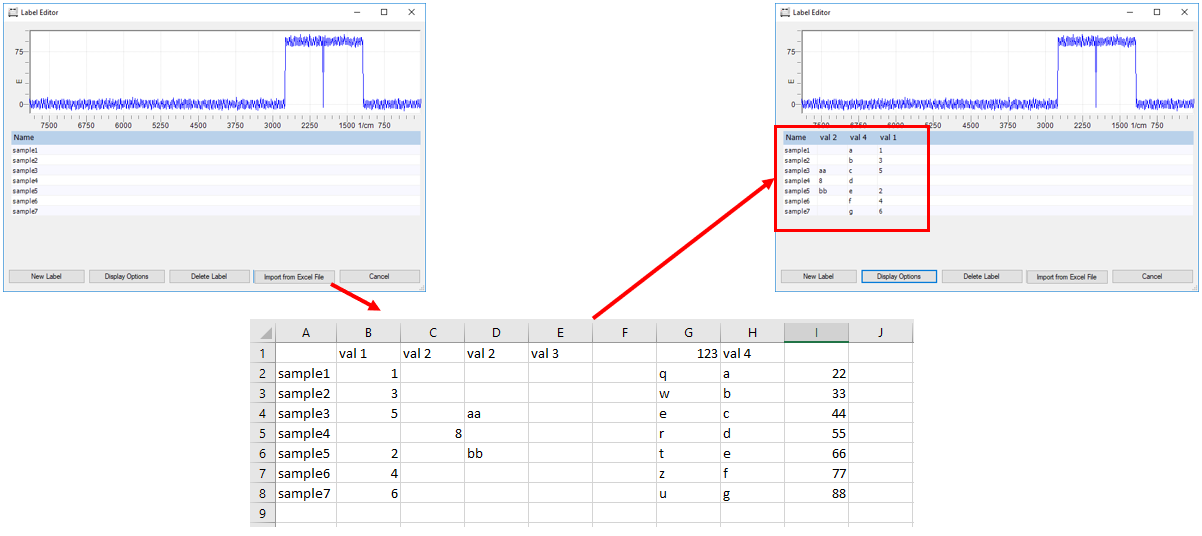
This functionality is designed to automatically create and add labels to the data and fill with content taken from an Excel document.
The Excel sheet must fulfill a few criteria, e.g. it must contain a list with:
- the spectra (object) names in column A, the only column that must not have a header
- one or more columns with different headers, corresponding sample name cells filled with content
Note, avoid the following scenarios:
- two columns with identical header: A warning message for duplicate columns is shown
- a column without header, except column A. Columns without header will be ignored for import
- a column with numerical header is not allowed (will be ignored for import)
- empty columns in between will be ignored for import
Import from Excel command
To import label information from an Excel sheet and add to spectral data, please follow the instructions below:
-
Load the spectra for modification
-
Expand the Tools menu and click Label Editor
-
Press the Import from Excel button
-
Select the Excel file, click Open and confirm the information dialog with OK
-
Use as Data Assignment: Use Spectrum Name
-
Confirm with OK
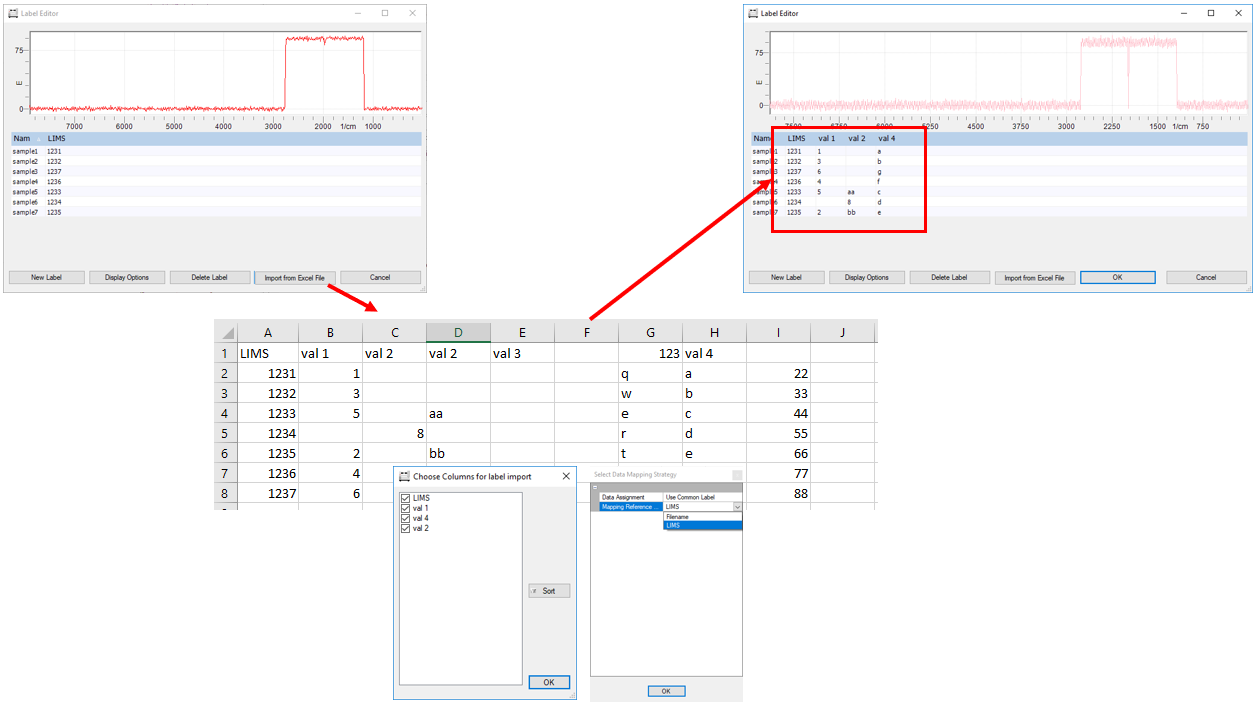
Enter custom Label as link Reference
Below is an example to illustrate the workflow:
-
Edit the Excel file and insert a new column A. Enter as header: LIMS
-
Enter valid values in the new column
-
Open the Label Editor, add a new label LIMS and fill in the same values entered in the Excel
-
Use as Data Assignment: Use Common Label.
-
Set Mapping Reference Label: LIMS
-
Confirm with OK