Instrument Panel
Click the Instrument menu and click Show Instrument Panel command to open or close it.
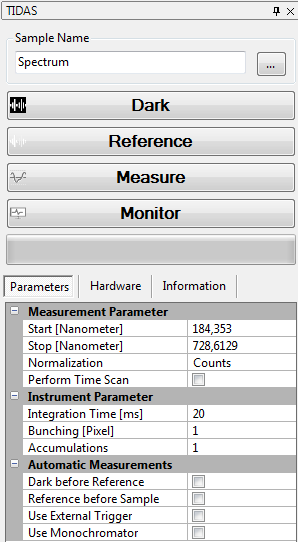
The instrument panel is opened on the right side of the application window. If the Show Instrument Panel menu is already checked, the panel might be folded away. To unfold it, just hover with the mouse over the vertical bar to the right side of the application window. Then click the pin icon to fix the window to the desktop.
Sample Information
The sample name text field allows quick entering the name for the next spectrum to be acquired. Additional data storage options and auto naming features can be setup in a separate Sample Information Editor. To open the dialog, click the  Button.
Measurement Control Buttons
The software scans automatically for active instruments. In case an instrument with a valid IP Address is found, it is automatically connected and the following buttons are available for experiment control:
-
Dark
Dark measurements are required to correct measured spectra for an empty background or e.g. a solvent. All measured spectra will be corrected with the last measured dark spectrum automatically. -
Reference
In case a reference is missing at startup, the software will prompt you to perform a reference measurement. When connected to the instrument, the background can be actively renewed by the operator whenever needed prior to a sample measurement. In case a new background is required by the background validity settings, the software will prompt you again to perform a reference measurement.Is the background always required?In case the Counts, Single beam or Interferogram measurement mode are configured, the background is not required, since energy data is returned by the spectrometer.
-
Measure
Starts a sample measurement with the actual parameters listed in the parameters area. A measurement can be aborted/stopped by clicking on the **Abort-**button. The Measure button becomes an Abort button while the measurement is running. Please refer to the chapter Spectrum Measurement for detailed description of all measurement options. -
Monitor
Starts a continuous data acquisition and displays measured spectra immediately in an online monitoring data view. Since the data is displayed in real time, this is useful for integration time or accumulations adjustment. The live view mode can be stopped by clicking on the **Monitor-**button again. Measurement details of the current live spectrum acquisition are displayed in the status-bar of the main application window.