License Creation
License Creation
After creating either a new serial number or new dongle license some default actions can be configured.
Send Email after License Creation
You may want to send an email with license information directly to the end customer after creation of the license. In this case it is useful to have a default email template with placeholders for the serial number, dongle number, purchase order number and other useful information. It would be a time consuming job for the operator to write all these emails in production process and copying the license information is error prone, too.
Hence the Licensing Tool offers a configurable default email template in a text file, which is automatically filled with the information of the new license. The Licensing Tool user just needs to complete the email with the end customer's email address and can send it.
Please refer to the section "Configuring Email Templates" for details on how to setup a template.
-
If enabled (the checkbox is checked)
After successful license or dongle license creation the Licensing Tool user is prompted, whether he likes to send the email or not. The following message is shown:
This means, the user can skip this step although configured if he likes.
-
If disabled (the checkbox is not checked)
Neither the user is prompted nor an email is created.In addition an email is sent to pre-defined email address(es)!During initial start-up of the Licensing Tool you might have configured email address(es) in the "License Creation and Registration Information" section. An email with the new license information is sent to this email addresses automatically without notification.
Create Product USB-Key
Production needs to create product USB-keys with installation files and additional information being shipped to the end customer.
Some production facilities have a master USB-key of the product USB-key with all required files to be shipped on the final product USB-key. Alternatively they might have the files in a folder on their hard disc. The Licensing Tool can automatically make copies of the master if required. In this case all files located in the specified directory containing the *.msi file are automatically copied to an empty USB-key.
The core product installation setup is a file shipped to customers containing the installation components of the product. All these components are packaged into a single file with extension *.msi. This file is required to determine the software version number shipped to the customer. The version information is kept with the license for service purposes in order to track which software version has been shipped to a customer.
Furthermore the location of the *.msi file (either a folder on your hard disc or a USB-key drive) and all files in this location are subject to creating a product USB-key which is burned by the Licensing Tool.
-
If enabled (the checkbox is checked)
After successful license or dongle license creation the Licensing Tool user is prompted, whether he likes to burn a product USB-Key or not. The following message is shown: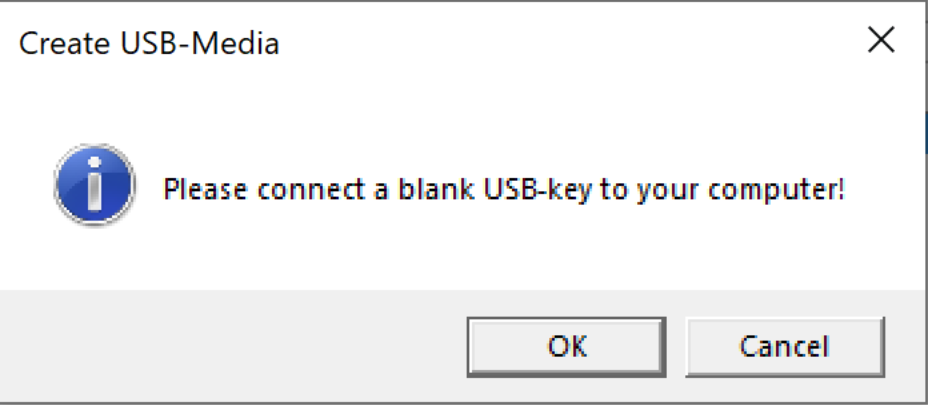
This means, the user can skip this step although configured if he likes.
-
Connect a blank USB-key to your computer.
-
Click the OK Button to start copying the files.
-
After completion you are prompted and you can eject the USB-key in File Explorer and remove it.
- If disabled (the checkbox is not checked)
Neither the user is prompted nor a product USB-key will be created.