License Update
License Update
The serial number or dongle license update has the same options described above for new licenses. However for the dongle update, creating a USB-Key is different as described in the following:
Send Email License after Update
You might want to send an email with the license update information either serial number update or dongle update to the end customer. An email template as text file is available for customization.
Please refer to the section "Configuring Email Templates" for details on how to setup a template.
When creating a dongle update license the dongle is not available in production, because it resides at the end customer.
A ZIP-archive with a dongle update tool is available for download. A corresponding hyperlink is included in the email text. The ZIP-archive contains the software to do the dongle update remotely on the end customer's site. The end customer needs to download the ZIP-archive and extract contents into a temporary folder. In addition, the license update files is attached to the email. The customer needs to detach and extract the update file into the same temporary folder. The customer must connect the dongle to the computer and then run the DongleLicenseUpdateTool.exe in the temporary folder to update the license information on his dongle. The dongle update tool is self explaining. Corresponding customer assistance is provided in the user interface of the tool.
Create Update USB-Key
When creating dongle update licenses the dongle is not available in production, because it resides at the end customer. However the dongle needs to be re-burned to update the license information on it. To provide the end customer with an easy to use tool to perform this update all required files are burned to an autorun USB-Key. The end customer just needs to insert the USB-Key into his drive and the update runs fully automated.
-
If enabled (the checkbox is checked)
After successful dongle update license creation the Licensing Tool user is prompted, whether he likes to burn an update USB-Key or not. The following message is shown: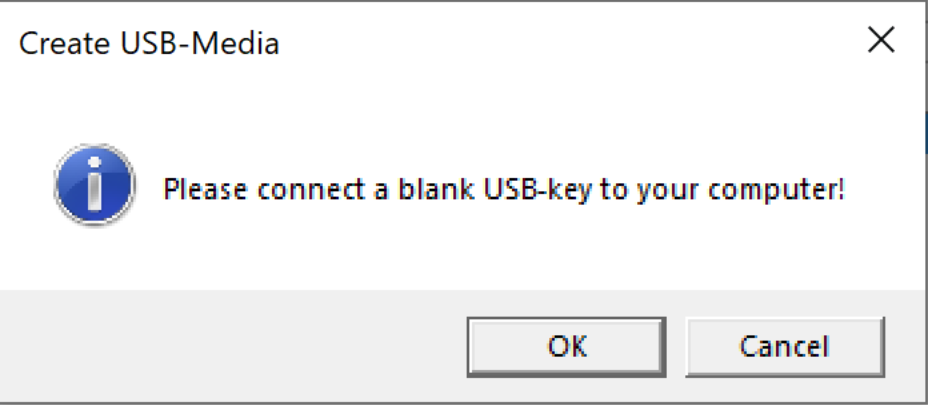
This means, the user can skip this step although configured if he likes.
-
Connect a blank USB-Key to your computer.
-
Click the OK Button to start copying the files to the USB-Key.
-
After completion you are prompted and your can eject the USB-Key in File Explorer and disconnect it afterwards.
- If disabled (the checkbox is not checked)
Neither the user is prompted nor an update USB-Key will be created.