Main Window
The main Licensing Tool Window is the core control center for license and license update creation. Here you can also adjust some additional settings regarding the Licensing Tool. It shows all available options at a glance:
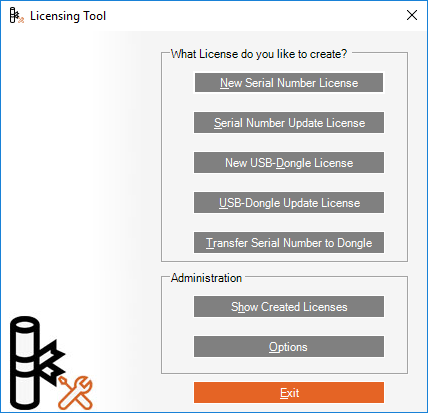
Click the Exit Button to close the Licensing Tool.
What Information do I need to create Licenses?
Before you can start creating licenses or license updates you need particular information from your sales or accounting department or the end customer. In the following required information is further explained:
New Licenses
When creating new licenses either serial numbers or dongles you need the following information:
-
Purchase Order Number (PO#)
This is meant to be a unique identifier for a purchase order. It is used for communication between your company and labCognition. This number is the reference to your license order on any communication order confirmations, delivery notes and invoices submitted by labCognition to your company accounting. -
Installation Setup File
This means a product USB-Key or folder on your hard disc containing the installation *.msi file to be delivered to your customer. By default the product USB-Key or downloaded product ZIP-archive contains several files.
The core product installation setup is a file shipped to customers containing the installation components of the product. All these components are packaged into a single file with extension *.msi. This file is required to determine the software version number shipped to the customer. The version information is kept with the license for service purposes in order to track which software version has been shipped to a customer.
Furthermore the location of the *.msi file (either a folder on your hard disc or a USB-Key) and all files in this location are subject to creating a product USB-Key which is burned by the Licensing Tool. Please refer to the "Options" section for details.
- Red or Golden USB Dongle (optional)
A fresh dongle is required to create a dongle license. In case you are permitted to overwrite an existing dongle license, you may use such dongle as well.
License Updates
License updates are ordered by customers who already have a valid license and who would like to purchase additional functionality. In this case their actual license needs an enhancement.
When creating license updates either serial numbers or dongles you need the following information:
-
Purchase Order Number (PO#)
See above. -
Installation Setup File
See above. When shipping an update with new product USB-Key to the customer the current product version might be different from that one sent previously -
Customer's current Serial Number
If customers like to update their actual license you need the actual serial number to create a proper update license.
Typically the customer needs to tell you the serial number by phone or email. The customer can review his actual serial number in the Help->About dialog of his installed product. The dialog also contains the product name, serial number, dongle number, licensed modules, etc.
Ask the customer to do the following:
Start the product application
From the Help Menu in the software, choose the About Command.
A dialog similar to the one shown below is displayed then
The customer needs to tell you / email you the numbers marked with a red rectangle.In some cases, it might be useful to take a screenshot of the dialog. (A screenshot of the active dialog can be taken with ALT-Print Screen keys.)
- Customer's current USB Dongle Number and dongle type (optional)
When creating a dongle update you require the dongle number or the serial number and the dongle type. The dongle type means the color of the dongle (either red or golden). The dongle number and type are easier to handle, because the dongle number is much shorter. It can be found in the Help->About dialog as described above..
What License do you like to create?
Click one of the buttons in that group to create a new license or license update. Follow the links below to see the details of the license production work flow.
-
New Serial Number License
Click this button to start creating a new serial number license. Please refer to the section "New Serial Number License" for details. -
Serial Number Update License
Click this button to start creating an update for an existing serial number license. Please refer to the section "Serial Number Update License" for details. -
New USB-Dongle License
Click this button to start creating a new serial number license. Please refer to the section "New USB-Dongle License" for details. -
USB-Dongle Update License
Click this button to start creating an update for an existing serial number license. Please refer to the section "USB-Dongle Update License" for details. -
Transfer serial number to USB-Dongle
Click this button to start transferring an existing serial number license to a USB-Dongle. Please refer to the section "Transfer serial number to USB-Dongle" for details.
Administration
In this group you may configure some options and default settings of the Licensing Tool. Please refer to the sections accordingly:
-
Show Created Licenses
Click this button to open the folder in Windows Explorer holding copies of all produced licenses. A backup folder can be setup in the Options dialog. Please refer to the section "Backup Options" in the chapter Options" for details. -
Options
Click this button to show configurable Licensing Tool options. Here target folders, default behavior of the Licensing Tool and some work flow controls can be configured. Please refer to the section "Options" for details.