Transfer Serial Number To USB-Dongle
Sometimes, customers first of all purchase a serial number license and install it on their computer. Later on they might find out, they would need a second license for their daily work, e.g. if a license is required in their laboratory and in the office, but not at the same time.
In this or any other case they want to benefit from the advantages of a USB-Dongle license.
In order to save the money for an additional serial number license, such license can be transferred to a USB-Dongle to be portable in the future.
There is also the following disadvantage when using a USB-Dongle as license media:
In case the dongle is lost, neither labCognition can recover such lost license nor can it be restored on a replacement USB-Dongle for a cheaper price.
Customers must purchase a new license in this case! Please inform your customers before selling this option.
The transfer process is performed with a fresh or used USB-Dongle hardware. In case the USB-Dongle has been previously used, you may over-burn it. All you need is the serial number to be transferred and the target USB-Dongle.
To start transferring the serial number license to a USB-Dongle, follow the steps described below:
-
Click the Transfer Serial Number to Dongle Button in the Main Application Window
The following dialog window is shown: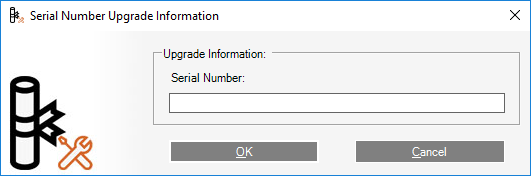
-
Enter the existing serial number provided by the end customer into the text field. Copy and paste operation is supported.
It is the number printed after "Serial No" in the Help->About dialog below.Where do I find the actual serial number of a license?The customer needs to tell you the serial number by phone or email. The customer can review his actual serial number in the Help->About dialog of his installed product. The dialog also contains the product name, serial number, dongle number, licensed modules, etc.
Ask the customer to do the following:
Start the product application
From the Help Menu in the software, choose the About Command.
A dialog similar to the one shown below is displayed then:
The customer needs to tell you / email you the numbers marked with a red rectangle.In some cases, it might be useful to take a screenshot of the dialog. (A screenshot of the active dialog can be taken with ALT-Print Screen keys.)
-
Click the OK Button to continue.
The following dialog is shown: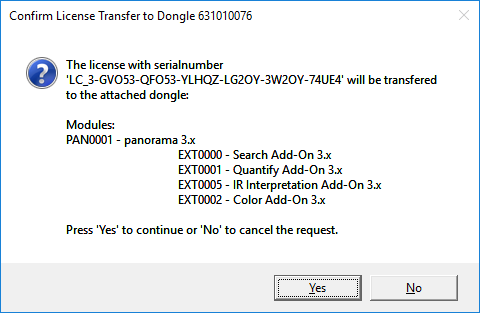
-
Click the Yes Button to transfer the license**
Click** the No Button to return to the Main Application Window.
This may take a while, because the information needs to be transferred to the licensing server.
The following situations might occur now:-
The license was not activate so far
In case the end customer has not yet activated the license for any computer the following message is shown:
-
The license was activated already
In this case, the USB-Dongle is prepared to carry the end customer's license. In a second step the end customer needs to complete the license transfer as described in section Completion of License Transfer.
The following dialog is shown:
-
-
Click the OK Button to finish and return to the Main Application Window.
Completion of License Transfer
Once the serial number license transfer has been initiated as described above, the transfer needs to be completed on the end customer computer, where the serial number has been activated with.
The customer has the software/product installed on his computer. During activation of the serial number, which probably happened a while ago, a file named Panorama.lic was written on the customer's computer to a specific location:
This Panorama.lic file is deleted during completion of the license transfer, since the information is moved to the USB-Dongle and the file is no longer needed.
NOTE: In any case, please inform the end customer, that the user, who performs the license transfer, must have read/write access to the folder the Panorama.lic file is located in!
NOTE: Once the license transfer is initiated, it must be completed! The license transfer process cannot be stopped or undone.
The end customer (assuming the user has sufficient privileges!) simply needs to follow the steps below to complete the license transfer:
-
Close the software/product the serial number is currently in use with.
-
Connect the USB-Dongle to the computer, where the software/product is installed.
The yellow light of the dongle must be illuminated for proper connection. -
Start the software/product
During startup of the application, the following dialog is shown: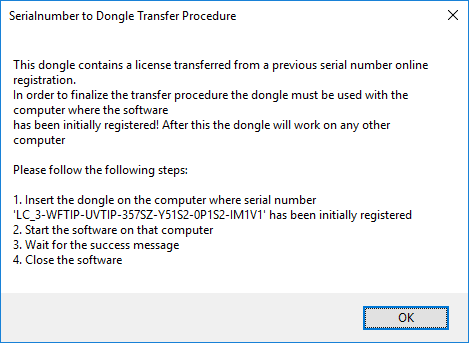
-
Click the OK Button to proceed.
The license transfer is now completed automatically. After completion, the following message is shown: