Upgrade License
Customers typically want to upgrade their product to the most recent version to participate on bugfixes, new features and improvements of the software from time to time. In case of minor updates and patches the pre-existing license might still work with the new version of the software. However, major product upgrades will not work with the previously used license. A corresponding upgrade has to be purchased then and a new license replacing the pre-existing one must be created with the licensing tool.
The following procedure describes, how to create a license upgrade for a pre-existing serial number or dongle license.
A license upgrade means replacing an existing license with a completely new license. The old license automatically becomes void after creation of the new license. Saying that, the customer is free to choose whether the new upgrade license shall be a serial number or a dongle license regardless of the pre-existing license model. This may be a big advantage in case the previously used license model did not work well for the customer.
The initial step in creation of a license upgrade is to start with one of the following options:
Follow the steps described accordingly. When it comes to the selection of the pre-existing license, refer to the section below for details.
Defining the pre-existing license
You must have the serial number of dongle number of the pre-existing license to perform a license upgrade. The customer may obtain the information from the Help->About dialog in his software.
-
Ask the customer to provide you the current license information
Where do I find the serial number or dongle number of a license?The customer needs to tell you the dongle number and the dongle type by phone or email. The customer can review his actual dongle number in the Help->About dialog of his installed product. The dialog also contains the product name, serial number, dongle number, licensed modules, etc.
Ask the customer to do the following:
Start the product application
From the Help Menu in the software, choose the About Command.
A dialog similar to the one shown below is displayed then:
The customer needs to tell you / email you the numbers marked with a red rectangle.In some cases, it might be useful to take a screenshot of the dialog. (A screenshot of the active dialog can be taken with ALT-Print Screen keys.)
-
Check the Is Major Product Upgrade checkbox in new license creation workflows.
Serial number licenses: The latest serial number is required!In case the customer had one or more serial number updates in the meantime, you require the most recent serial number to perform the license upgrade.
Dongle licenses: The dongle number or serial number are required!The dongle number is sufficient an can be entered in order to identify the serial number license behind it. In rare cases, the dongle number might be not unique and you have to verify the serial number is correct.
-
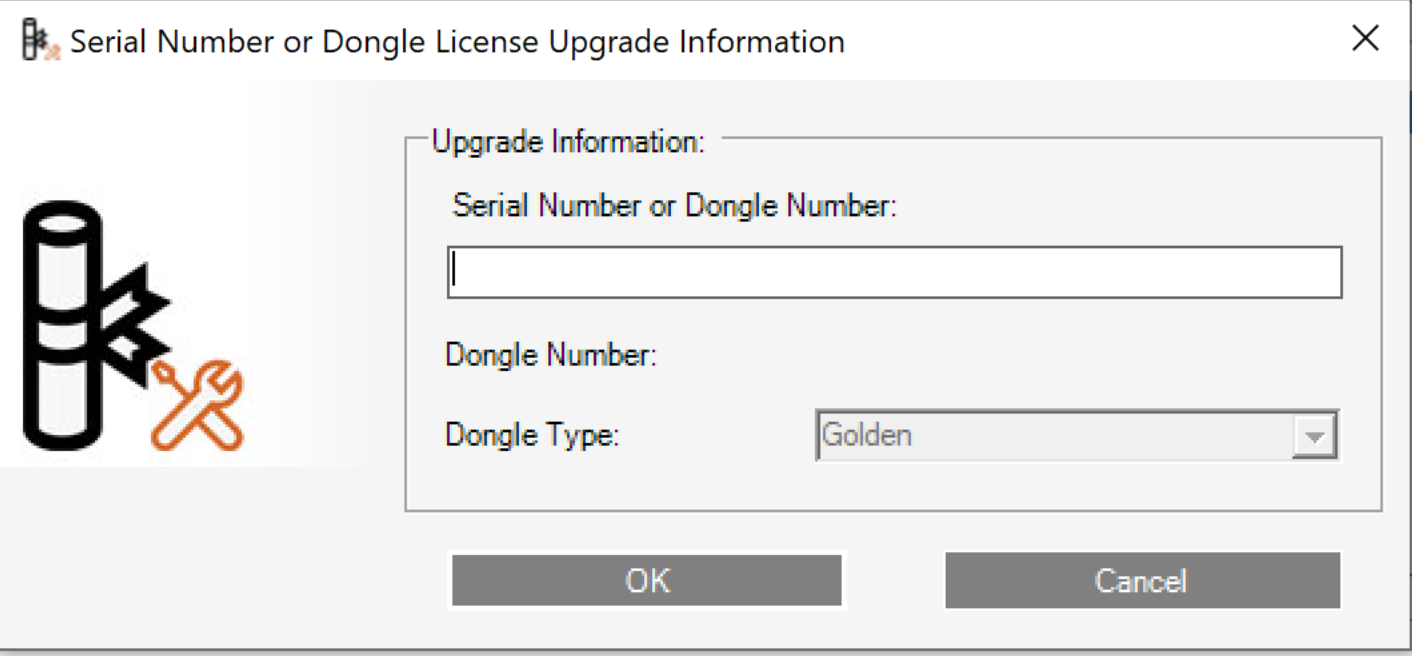
Enter the full serial number or in case of a dongle license, the dongle number in the opened dialog. In case of a dongle, please also choose the appropriate dongle type. In most cases this will be the Red dongle type.
-
Click the OK Button or press ENTER key to verify the entered information.
Why is the entered license information not accepted?In case an error is shown this might have several reasons:
In all cases, please double check your entries and try again.
-
Modules are automatically pre-selected according to the pre-existing license. Please verify this is correct before you continue! In case modules cannot be pre-selected, you will be informed, which modules cannot be automatically determined.
Why are some modules not selected automatically?This might have different reasons:
In all cases, please double check your entries and choose the appropriate modules.
-
Continue the steps described in the sections describing the creation of a license: